This tutorial explains how to use ADNeuronNet Web to search proteins, explore interaction evidence, inspect structures, and download datasets.
Follow the steps below for a complete workflow from query to data export.
All clickable links are colored blue.
Note: For the best experience, use a modern browser such as Chrome, Firefox, or Edge. Safari may have limited support for some features.
1. Search for a Protein
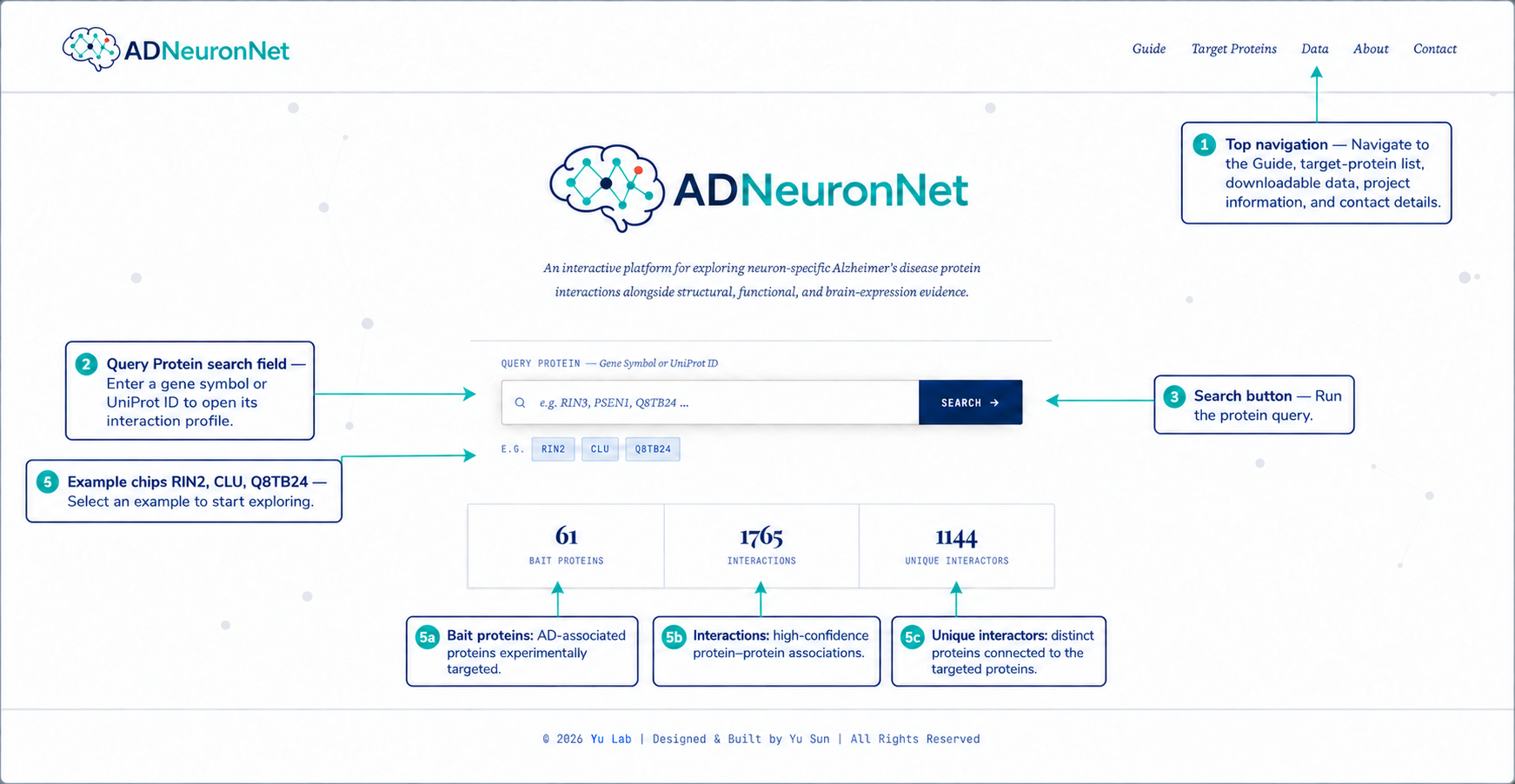
- Open the home page and enter a gene symbol or UniProt ID in the Query protein box.
- Use autosuggestions to pick the correct target, then click Search.
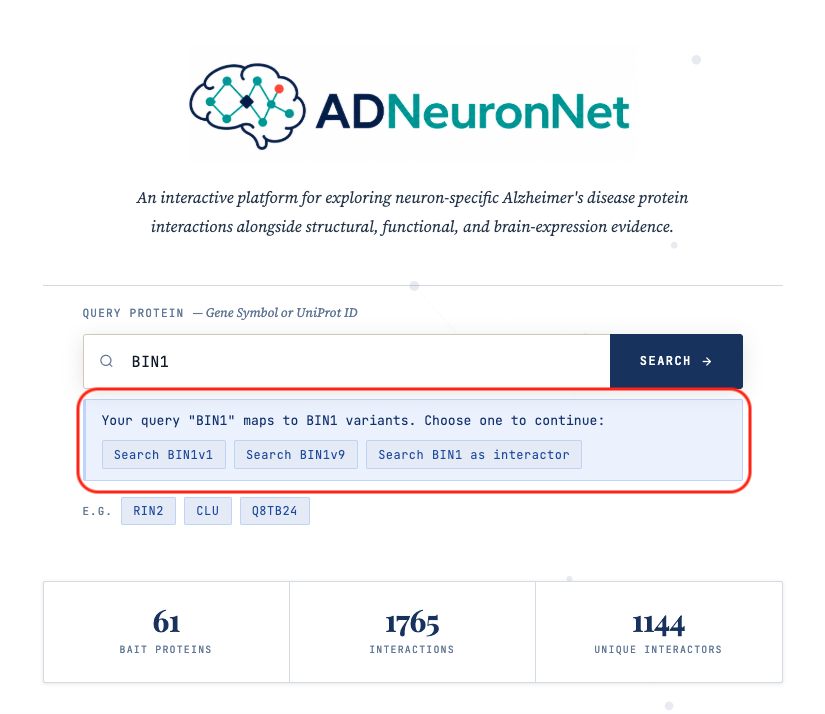
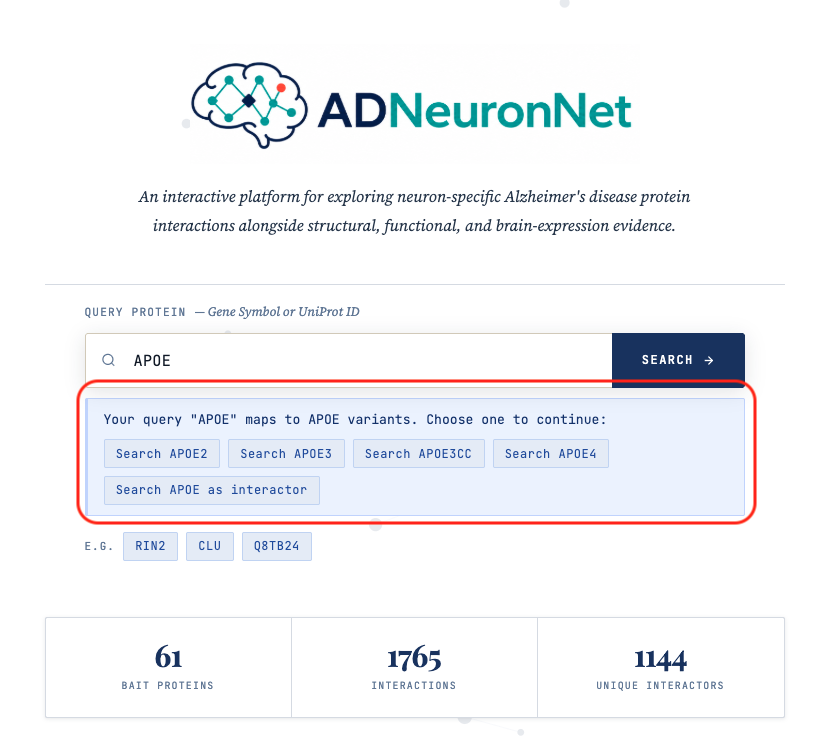
- NOTE: If you query BIN1 or APOE families, select the variant prompt that matches your analysis goal.
2. Read the Results Layout
-
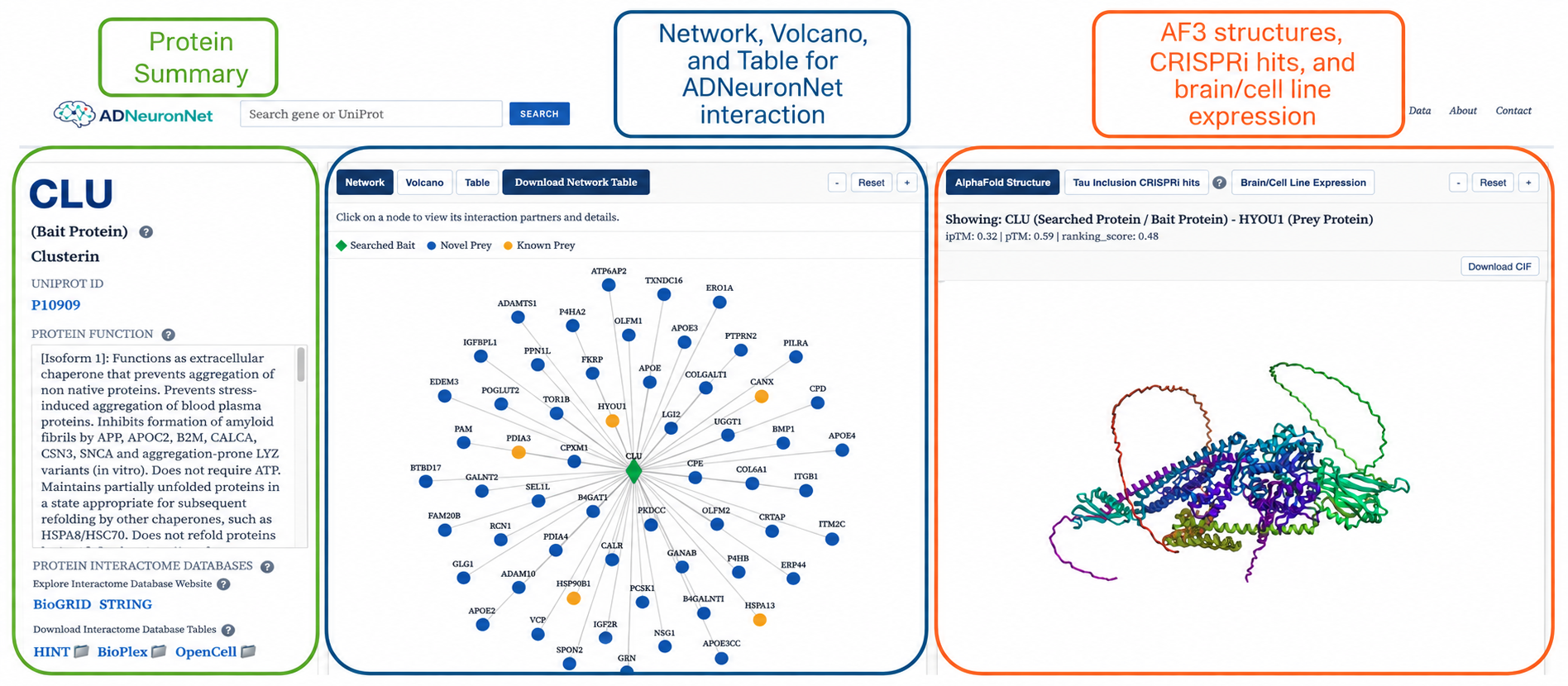
The left panel summarizes bait metadata and links to external resources.
- Click the gene symbol to view detailed information about that gene on GeneCards.
- The center panel contains Network, Volcano, and Table tabs for interaction-level exploration.
- Network tab shows the interaction network for the selected bait.
- Volcano tab displays the significance versus effect size for interactions.
- Table tab provides a detailed list of interactions with sortable columns.
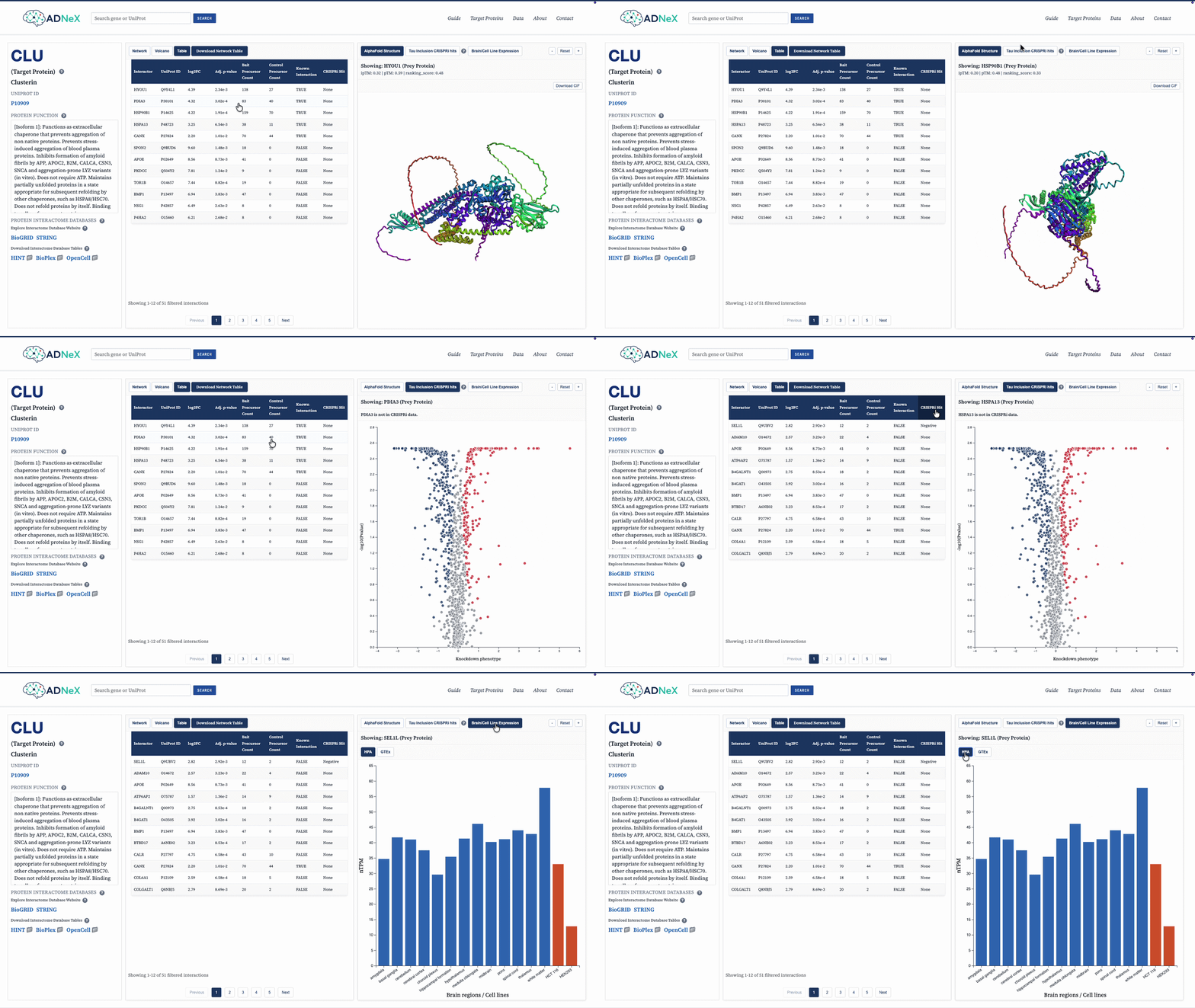
- The right panel provides AlphaFold3 structure, CRISPRi hit context, and brain-expression views.
- AlphaFold3 structure shows the predicted protein complex structure of selected interaction.
- CRISPRi hit context shows the effect of gene knockdown on the interaction network.
- Brain/Cell lines (HEK293 & HCT116) expression view displays the expression pattern of the gene in different brain regions.
3. Results Exploration
-
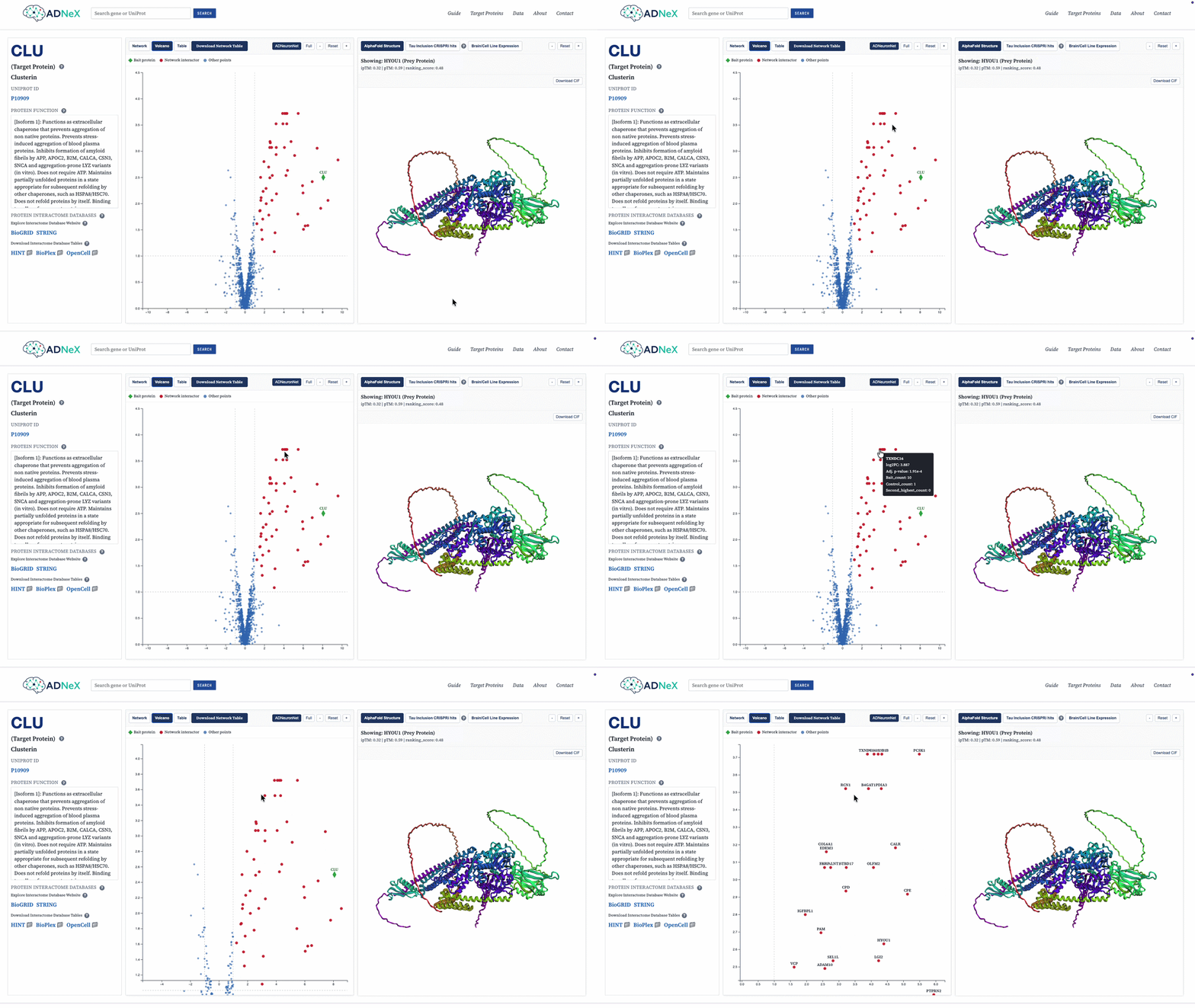
In both Network and Volcano tabs, use zoom controls to inspect dense neighborhoods. Double click the plot to reset the view. Hover on points to see details in the Volcano tab.
-
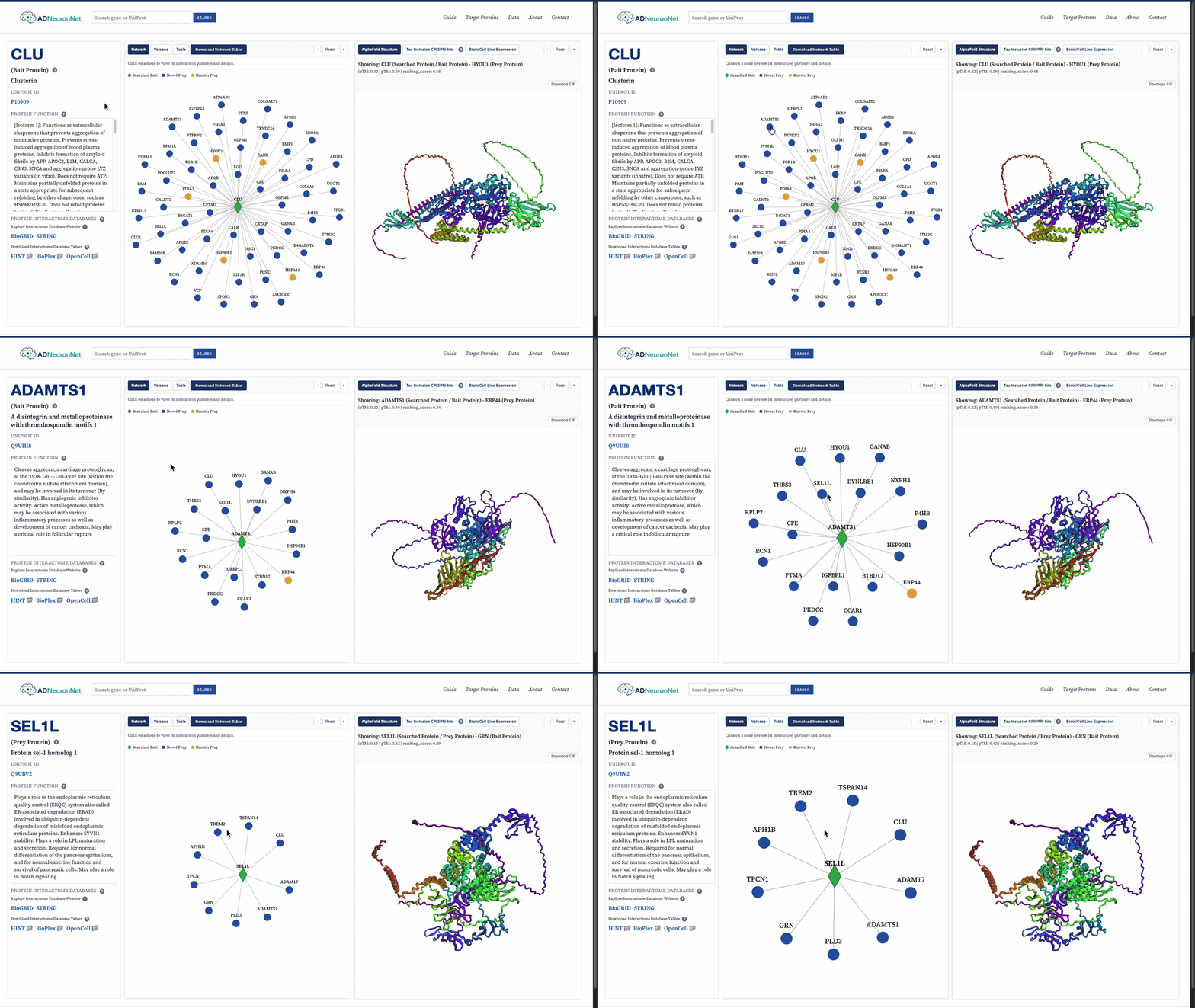
In the Network tab, click on nodes to view their interaction partners and associated details.
-
Switch volcano source between ADNeuronNet and Full to compare selective versus broad signal.

-
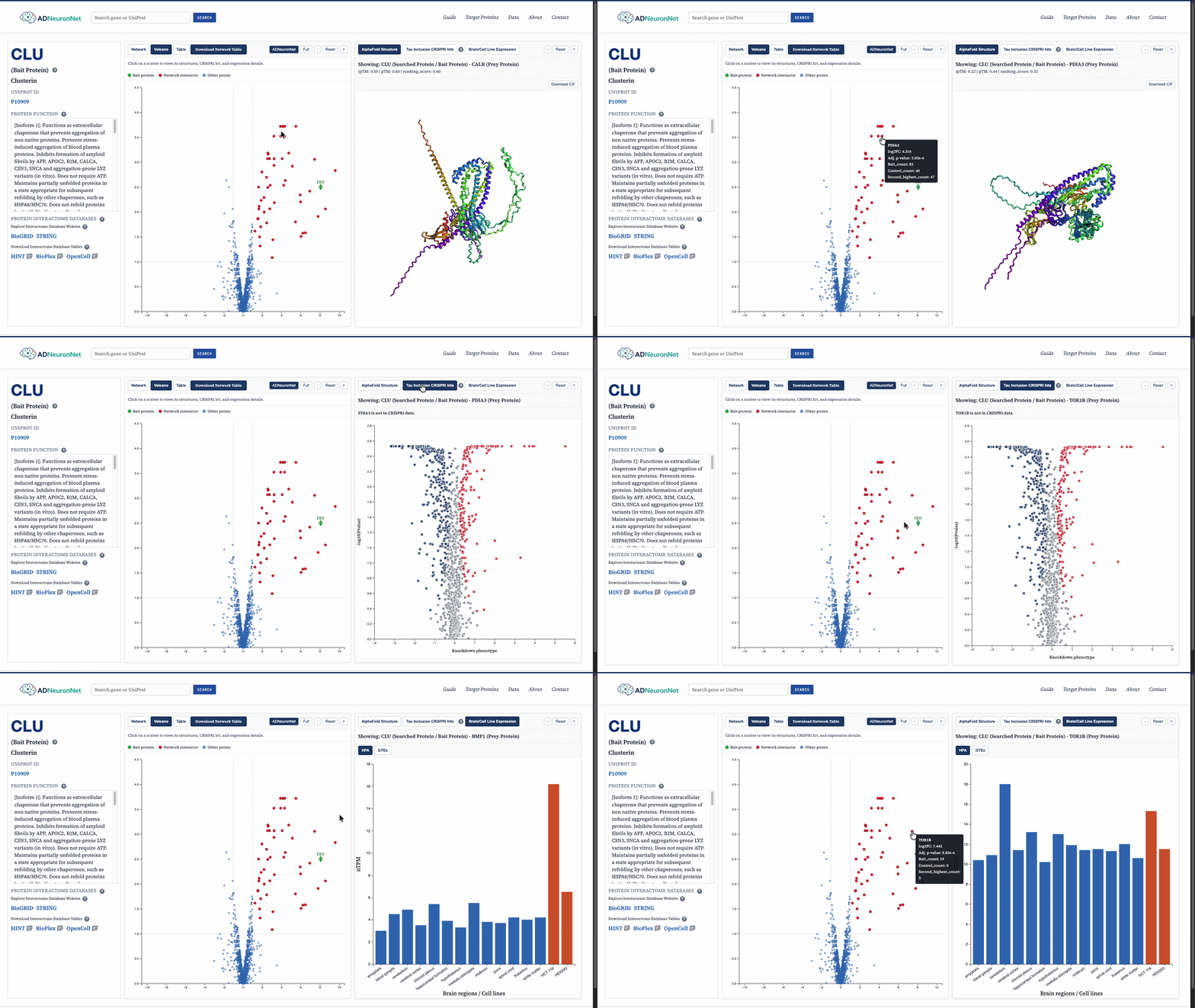
Click a point in volcano or a row in table to synchronize structure and expression context.
- Default will show the first interactor (first row of the network table) of the selected bait protein.
- After selecting an interaction, the right panel will show AlphaFold Structure, CRISPRi hit context, and brain-expression views.
- Use structure zoom controls to focus on interface regions.
- Click Download CIF to save the current predicted interaction structure when available.
4. Download Data
- Open Data in the header to access downloadable ADNeuronNet source datasets.
- Use card download buttons for full files; the Volcano card includes both Filtered and Full versions.
- Use external database links for HINT, OpenCell, BioPlex, BioGRID, and STRING reference downloads.
5. Tips and Troubleshooting
- If no structure appears, the selected interaction may not yet have a matched CIF file.
- Use UniProt-style IDs when symbol-based search is ambiguous.
- For data questions, reporting issues, or collaboration requests, use the Contact page.